How to Convert HEIC to JPG on Windows, Android and iPhone
You copy photos off an iPhone and Windows shows a blank icon. A job portal says “file type not supported”. A friend on Android can’t open what you sent. The photos are fine. They’re just saved as HEIC, and plenty of software still expects JPG.
The short answer
To convert photos you already have, open the HEIC to JPG converter in any browser, drop up to 20 photos in, tap Convert, then Download. It runs on your phone or computer, so your photos are never uploaded.
To stop the problem at the source, set your iPhone to save JPGs: open the Camera settings, tap Formats and choose Most Compatible.
What is a HEIC file?
HEIC is the format iPhones have used for photos since iOS 11 in 2017. It’s Apple’s name for a HEIF image compressed with HEVC, the same codec used for modern video. The point is space: a HEIC photo usually takes around half the storage of a JPG of the same quality, which adds up fast across thousands of photos.
The trade-off is compatibility. Apple devices open HEIC without a second thought, but plenty of other software can’t:
- Windows often shows HEIC files as blank icons until you install extra codecs from the Microsoft Store.
- Upload forms on exam, job, bank and government portals usually accept only JPG, JPEG or PNG.
- Older Android phones, photo editors, printing kiosks and many websites still can’t read it.
JPG works everywhere, so converting a copy is the quickest fix.

Method 1: Convert HEIC to JPG on any device (free, no upload)
This works the same on Windows, Mac, Android, iPhone and Chromebook, because it runs in the browser.
- Open stickerai.in/image-converter/heic-to-jpg.
- Drop your
.heicphotos in the box, or tap Choose images. You can add up to 20 at a time, each up to 50 MB. - JPG is already selected. Tap Convert.
- Tap Download. Several photos download together as one ZIP.
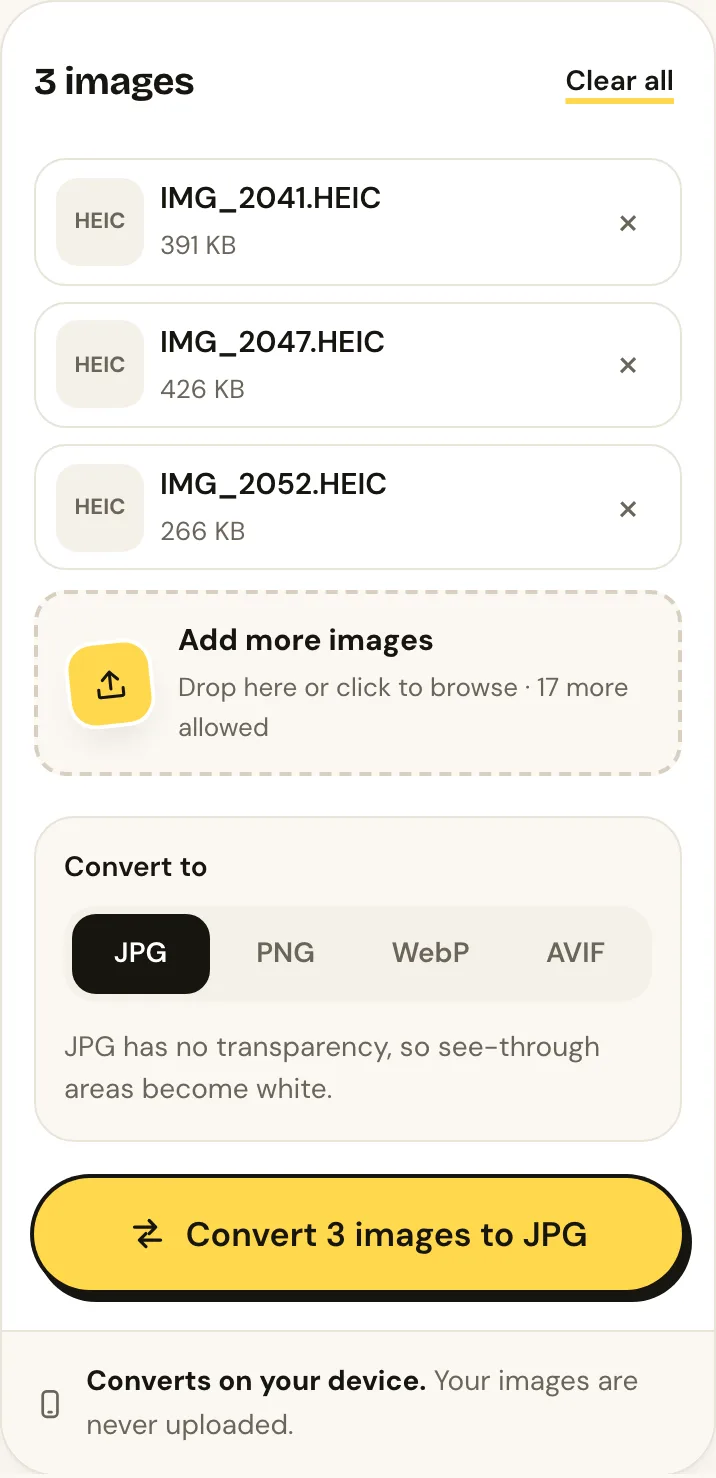
The first HEIC takes a few seconds longer while the decoder loads; after that, photos convert in about a second each. The conversion happens on your device, which matters when the photos are of your family, your ID card or your documents.
Planning to edit the photo, or want to keep every pixel? Choose PNG instead with the HEIC to PNG converter. The file will be bigger, but nothing is thrown away.
Method 2: Make your iPhone save JPG instead
For new photos
Open Settings, go to Camera (on recent iOS versions it sits under Settings → Apps → Camera), tap Formats and choose Most Compatible. From then on, the camera saves JPGs. Photos you’ve already taken stay HEIC, and new ones take up more storage.
When you copy photos to a PC
In the Photos settings, find Transfer to Mac or PC and choose Automatic. When you copy photos to a computer with a cable, the iPhone converts them to a compatible format on the way. Your library on the phone stays HEIC, so you keep the space savings.
On the iPhone itself, the quickest way to convert photos you’ve already taken is the converter from Method 1: open it in Safari, tap Choose images and pick the photos from your library.
Method 3: Open HEIC on Windows 10 and 11
Windows can show HEIC photos, but often only after you install two add-ons from the Microsoft Store: HEIF Image Extensions and HEVC Video Extensions. The HEVC one has usually been a small paid download. Once both are installed, Photos can open the files, and you can open a photo in Paint and use Save as → JPEG to make a copy.
That works for one or two photos. For a whole folder, or on a work PC where you can’t install anything, the browser converter is faster.
On a Mac or Android phone
Mac: open the photo in Preview, choose File → Export, set Format to JPEG and save. You can select several photos and export them together.
Android: recent Android versions and Google Photos can show HEIC photos, but sharing or uploading them often still fails. Some Android cameras also save HEIF/HEIC when a “high efficiency” option is turned on in the camera settings. Either way, the converter gives you plain JPGs.
HEIC vs JPG: which should you keep?
| HEIC | JPG | |
|---|---|---|
| File size | Smaller, often around half | Larger for the same quality |
| Opens on | Apple devices, newer Android, Windows with extensions | Everything |
| Upload forms | Often rejected | Always accepted |
| Extras | Live Photos, depth, 16-bit colour | A single 8-bit image |
The sensible setup for most people: keep HEIC on the iPhone to save storage, and convert copies to JPG when you need to share, upload or print them.
Common problems
- Renamed .heic to .jpg and it still won’t open. Renaming changes the label, not the file. The picture inside is still HEIC; convert it instead.
- The form says the file is too big after converting. A full-size phone photo can be a few megabytes as JPG. Use Compress to 50 KB or 100 KB; it accepts HEIC directly and saves a JPG.
- Live Photo lost its movement. A JPG holds one still frame. The motion part of a Live Photo is a separate video, so converting keeps the main photo only.
- Colours look slightly different. Some iPhone photos use a wider colour range than most screens. Converting maps them to standard colours, which can look a touch less vivid on high-end displays.
Frequently asked questions
Does converting HEIC to JPG lose quality?
Very little. StickerAI saves JPGs at quality 85, where the difference is very hard to see. If you need a perfect copy for editing, convert to PNG instead.
Is it safe to convert private photos online?
With StickerAI, the photos never leave your device: the converter runs inside your browser, and closing the tab clears everything. Many other “online converters” do upload your files to their servers, so check before you use one for ID documents.
How many photos can I convert at once?
Up to 20 at a time, each up to 50 MB, with no daily limit. For a bigger folder, convert in batches of 20.
Can I convert HEIC to PNG or WebP?
Yes. Pick PNG for lossless editing, or WebP for small files on websites and WhatsApp. The same converter handles both.