Photos Too Large to Email? How to Fit Them Under Gmail’s 25 MB Limit
You attach a handful of photos to an email and Gmail stops you: the files are too large, so it offers a Google Drive link instead. Today’s phone photos are 2–5 MB each, so a 25 MB limit runs out after just a few. Compress them first and the same email can carry several times as many photos, with no difference anyone will see on screen.
The short answer
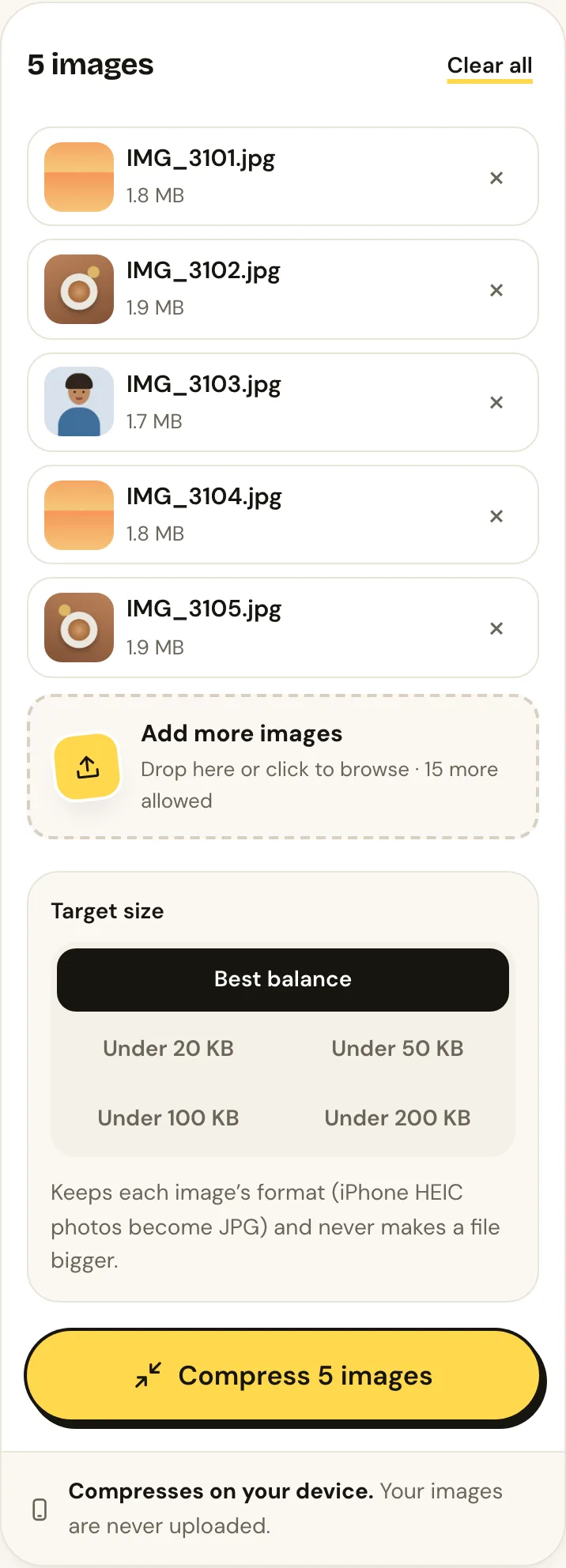
Open Tiny Images, drop in up to 20 photos, keep Best balance selected, tap Compress and download them as a ZIP or one by one. Phone photos typically come out 40–70% smaller and look the same. For dozens of photos, choose Under 200 KB instead. Nothing is uploaded.
Email attachment limits
| Service | Attachment limit | What happens above it |
|---|---|---|
| Gmail | 25 MB per email | Offers a Google Drive link instead |
| Outlook.com | 20 MB per email | Offers a OneDrive link instead |
| Yahoo Mail | 25 MB per email | The attachment is refused |
| Work email | Set by your company, often 10–25 MB | Often bounced back |
Attachments get slightly bigger in transit, because email encodes them as text, so in practice aim for a total of about 18–20 MB to stay safely under a 25 MB limit.
How many photos fit in one email?
| Photos as | Typical size | Per email (about) |
|---|---|---|
| Straight from a phone | 2–5 MB | 4–9 |
| Best balance | 40–70% smaller | Roughly 2–3× as many |
| Under 200 KB | Under 200 KB | Around 90 |
Estimates for typical phone photos; your results depend on the camera and the scene.
How to compress photos for email
- Open stickerai.in/compress-image on your phone or computer.
- Tap Choose images and select up to 20 photos. JPG, PNG, WebP and iPhone HEIC all work (HEIC photos come out as JPG, which every email app opens).
- Keep Best balance for photos people will look at, or pick Under 200 KB to send lots of them.
- Tap Compress, check a couple with Compare, then Download. Several photos download as one ZIP.
- Attach the compressed photos to your email.
Bonus for privacy: compressing usually re-saves each photo without its hidden camera data, which can include the GPS location where it was taken. Handy when you’re emailing photos to people outside your family.
Compress, or send a link?

Compressed photos are perfect for looking at on a phone or laptop, and for most sharing. If the recipient will print large or edit the photos professionally, send the full originals through a Google Drive or OneDrive link instead. A mix works too: attach a few compressed previews, and link the full set.
Tips for phones
- iPhone Mail may offer a choice of image size (Small, Medium, Large, Actual Size) when you attach photos. Large is fine for viewing; compressing first gives you more control.
- The Gmail app doesn’t resize photos for you, so compress first if you’re attaching several.
- WhatsApp compresses photos automatically when you send them normally, so it’s another quick route for casual sharing.
Frequently asked questions
Will compressed photos look worse?
Not on screen. Best balance removes detail your eyes can’t see at normal viewing sizes. Use Compare to check before you send. Keep your originals for printing.
Why does Gmail say my attachment is too large?
Gmail allows 25 MB of attachments per email, and the files grow a little in transit. A few uncompressed phone photos are enough to go over.
Can I compress videos for email too?
Tiny Images is for photos. Videos are usually far too large to attach; share them through a Drive or OneDrive link.
Are my photos uploaded anywhere?
No. Tiny Images runs in your browser, so your photos stay on your device until you attach them yourself.