How to Save WebP Images as JPG or PNG on Any Device
You right-click a picture, choose “Save image as”, and get a file ending in .webp. Your photo editor won’t open it, the upload form rejects it, and WhatsApp on an old phone shows a blank square. Here’s why that happens, and how to save WebP images as JPG or PNG on Chrome, Windows, Mac, Android and iPhone.
The short answer
To save a WebP image as JPG, open the WebP to JPG converter, drop in your .webp files and tap Convert, then Download. Choose PNG instead if the image has a transparent background. It’s free, handles 20 images at a time, and runs in your browser, so nothing is uploaded.
Why do images save as WebP?
Because that’s the file the website sent. WebP is an image format Google introduced in 2010, and it’s usually 25–35% smaller than a JPG of the same quality, so most big websites now serve their images as WebP to load faster. When you choose “Save image as”, Chrome, Edge and other browsers save the file exactly as it arrived. Nothing is wrong with your browser; the website picked the format.

Every modern browser can show WebP, but plenty of other software still can’t: older photo editors and Windows viewers, printing shops, many job and exam portals, and some social and messaging apps on older phones.
Method 1: Convert WebP to JPG or PNG in your browser (any device)
- Open stickerai.in/image-converter/webp-to-jpg.
- Drop your .webp files in the box, or tap Choose images. Up to 20 at a time, each up to 50 MB.
- JPG is already selected. Pick PNG if you need to keep a transparent background.
- Tap Convert, then Download. Several images download as one ZIP.
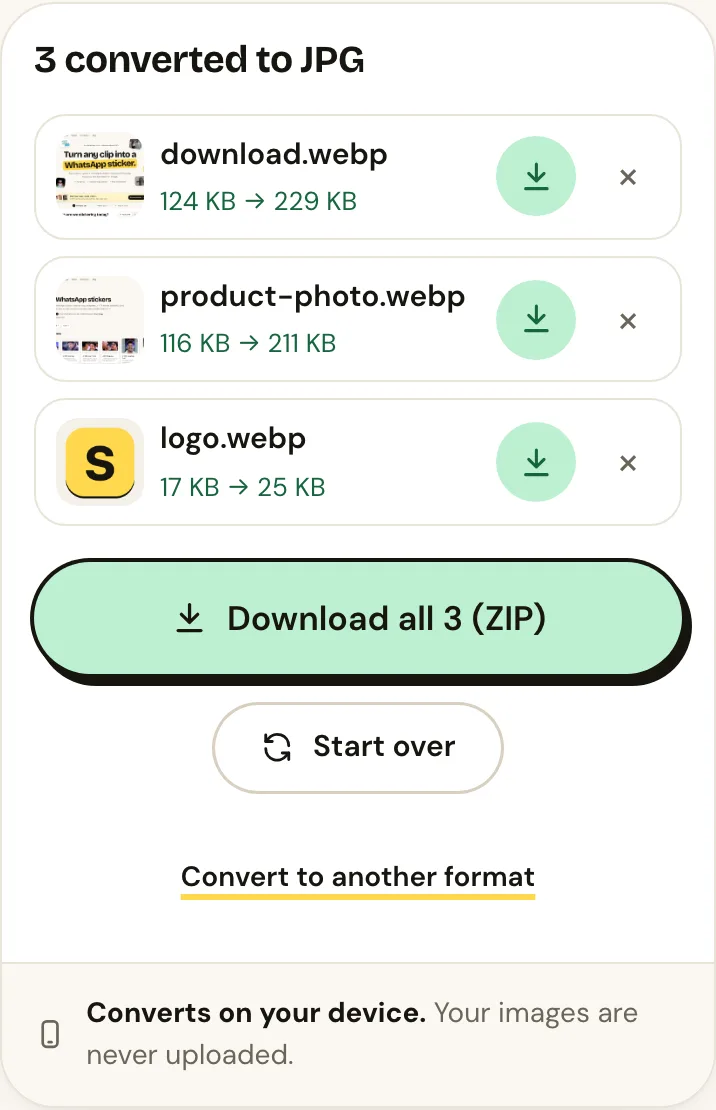
Notice the JPGs come out bigger than the WebP files. That’s expected: WebP compresses better, so the same picture needs more bytes as a JPG. If a form also has a size limit, run the JPG through Tiny Images afterwards.
How to save WebP as JPG on Windows
On Windows 10 and 11, Paint can usually open WebP files. Right-click the .webp file, choose Open with → Paint, then File → Save as → JPEG picture (or PNG picture). If Paint won’t open it, your PC may be missing the free WebP Image Extensions from the Microsoft Store. This works one image at a time; for a folder of images, the browser converter is faster.
How to save WebP as JPG on a Mac
Recent versions of macOS open WebP in Preview. Open the file, choose File → Export, set Format to JPEG or PNG, and save. To convert several at once, select them all in Finder, open them together in Preview, select all the thumbnails in the sidebar, and export.
On Android and iPhone
Phones can display WebP in the gallery, but neither Android nor iOS has a built-in “save as JPG” option. The simplest route is the converter: open it in Chrome or Safari, tap Choose images, pick the WebP files from your gallery or Files app, and download the JPGs.
Why not just take a screenshot? A screenshot does give you a PNG, but at your screen’s resolution, with any zoom, crop or status bar included. Converting keeps the original size and quality.
Should you save WebP as JPG or PNG?
| Choose | When | Trade-off |
|---|---|---|
| JPG | Photos, upload forms, email, printing | No transparency: see-through areas turn white |
| PNG | Logos, stickers, graphics with a transparent background, anything you’ll edit | Lossless, so files are larger |
Not sure what the difference is? The JPG vs PNG vs WebP guide compares every format with real file sizes.
Does converting WebP to JPG lose quality?
Barely. StickerAI saves JPGs at quality 85, where the difference is very hard to see. Converting to PNG adds no loss at all, because PNG is lossless: you get exactly the pixels the WebP contained. Converting can’t add back detail the website’s WebP already left out, though.
Common problems
- Renamed .webp to .jpg and it still won’t open. Renaming changes the label, not the file. The data inside is still WebP, so strict apps and forms reject it. Convert it instead.
- The transparent background turned white. JPG can’t store transparency. Convert to PNG instead.
- The image looks small or blurry. Many websites serve a reduced copy of the picture. The converter keeps whatever size you saved; look for a larger version on the website.
- The form says the file is too big. Use Compress to 100 KB or 50 KB. It accepts WebP directly and saves a JPG, so it fixes the format and the size together. More fixes are in the form upload guide.
Frequently asked questions
How do I stop Chrome from saving images as WebP?
You can’t change it in Chrome’s settings, because the website decides which format to send. Save the image, then convert the copy; it takes a few seconds.
Is WebP better than JPG?
For websites, usually yes: it’s smaller at the same quality and supports transparency. For sharing with any app or uploading to forms, JPG is safer because everything accepts it.
Can I convert JPG or PNG to WebP?
Yes. Use JPG to WebP or PNG to WebP to make images smaller for your own website.
Is it safe to convert images online?
With StickerAI, the images never leave your device: the converter runs in your browser. Many other online converters upload your files to a server first.