Why X (Twitter) GIFs Don’t Work as WhatsApp Stickers
You find the perfect reaction GIF on X. You send it to WhatsApp, expecting a sticker. Instead, it arrives as a video, a GIF, or just a link. Usually, something changed between the source, the file you saved and the way you sent it.
The short answer
A reaction playing on X, a downloaded MP4, and a WhatsApp sticker are different things. Sharing the post shares a link; attaching its media sends media. To get a sticker, you also need WhatsApp to create or import it as one.
StickerAI can load supported public X posts or a file you already have, then trim and export an animated GIF. On compatible mobile setups, copying that animation may produce a Custom sticker preview in WhatsApp. Check the preview before sending—downloading the GIF alone does not install a sticker.
The GIF you see on X might not actually be a GIF
“GIF” often describes a short, repeating reaction. It does not necessarily describe the file delivered to your phone. X distinguishes animated GIFs from other media in its API, and supports playback variants such as MP4 video. Its media documentation also separates the playable media from a static preview image.
That is why an X GIF can arrive as an MP4—or why saving the preview can leave you with a still picture. The useful question is whether your saved file actually plays. You do not need to rename an MP4 to .gif: StickerAI accepts video input, too.

Why copying an X GIF into WhatsApp doesn’t create a sticker
| What you send | What WhatsApp receives | What to do next |
|---|---|---|
| X post link | An address, sometimes with a preview | Load the supported post or obtain its media first. |
| GIF attachment | An animation shared as media | Use a supported sticker creation or import path. |
| MP4 attachment | A video, or a GIF-style message if you choose that option | Choosing GIF does not itself create a sticker. |
| Sticker from the sticker tray | A sticker message | Send and reuse it from your sticker collection. |
A transparent background is not proof that a file is a sticker. Neither is a square canvas. The route into WhatsApp matters as well as the file.
How to turn an X GIF into a WhatsApp sticker
1. Bring in the actual animation
For a supported public post, copy its link from X’s share menu. Open StickerAI’s converter, choose Paste a link, paste the post address, and tap Load clip. The current importer recognises X or Twitter post addresses containing /status/ and looks for accessible video media.
This is not a promise that every X link will work. Private, deleted, restricted or unavailable posts can fail, and changes at X can affect imports. A post without accessible moving media cannot supply an animation.
If you need a file instead, use your original clip, ask its creator for a copy, or use X’s Download video option when available to your account and allowed for that post. X documents eligibility and creator controls in its video download guidance. There is no universal “save GIF” option for every post. Use media you made or have permission to reuse.
In StickerAI, choose Upload → Choose video or GIF. The interface accepts MP4, MOV, WebM or GIF files up to 20 MB; video decoding also depends on your browser. If a video cannot open, try an H.264 MP4 or the original GIF.
2. Keep the reaction short and readable
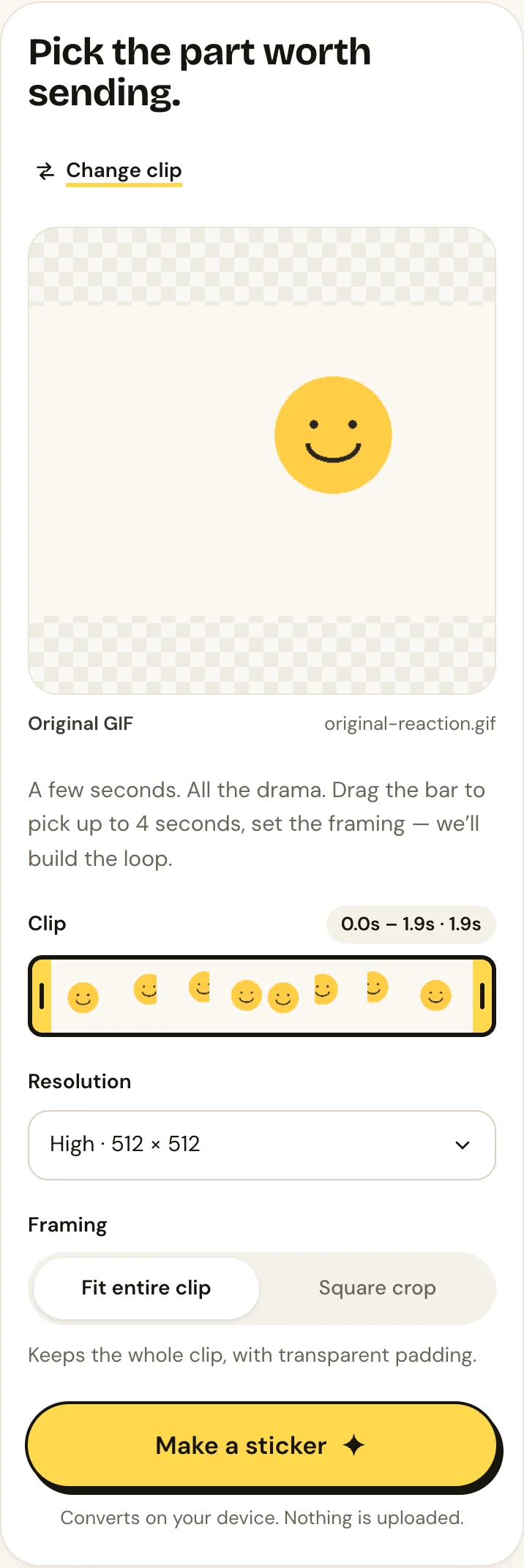
Drag the trim handles to select up to four seconds. Start with one or two seconds if the expression works in that time. Choose Fit entire clip to keep captions, or Square crop if the subject is in the centre. Select High for 512 × 512 output or Compact for a smaller 320 × 320 GIF, then tap Make a sticker.
3. Check what WhatsApp is about to send
Where your mobile browser offers Copy image, press and hold the moving result and copy it. Open WhatsApp mobile, hold the message field and paste. If WhatsApp presents Custom sticker, check that it moves before sending. You can then use the sticker’s menu to save it to Favorites.
If you get a GIF, video, still image or no paste option, stop there: that handoff has not created an animated sticker. A shorter clip or Compact export can reduce the file size, but cannot add missing clipboard or sticker support. Use the alternatives below or follow the dedicated guide to stickers sending as GIFs.
Does this work on iPhone and Android?
The browser conversion and the WhatsApp handoff are separate. The converter can prepare a GIF on either platform; the clipboard, browser and WhatsApp version determine what can happen next.
On iPhone
Open StickerAI in your browser and try copying the moving result itself. If the browser only copies a still frame or WhatsApp previews a GIF, use Download GIF to keep the animation, but do not expect sharing that download from Files or Photos to install a sticker.
On Android
Use the same upload or supported-link flow. If a long press offers only saving or sharing, or your keyboard pastes an image without animation, use the download as a source for a sticker importer that explicitly supports animated GIFs. Complete its Add to WhatsApp step, then send from WhatsApp’s sticker tray.
On either phone, check WhatsApp’s own sticker creation menu if you already have the source video. WhatsApp has announced an animated sticker maker for videos. If your installed version offers video selection there, that can avoid the browser clipboard handoff. StickerAI exports GIF, not MP4, so retain the original video for this route.
Testing scope: We checked the current converter with an original animated GIF in a mobile-sized desktop browser. The screenshots show the actual product. Physical iPhone and Android WhatsApp import steps have not been verified for this article; menu names and clipboard support can vary.
Common problems and fixes
- The X GIF downloads as MP4. Keep the MP4 and upload it directly. Renaming the extension does not convert it.
- The GIF becomes a static image. You may have saved a thumbnail or copied one frame. Check the original file for motion, then download the animation rather than taking a screenshot.
- WhatsApp sends a video instead of a sticker. You used a media attachment path. Return to a supported sticker creation/import flow and inspect the preview.
- The animation stops. A sticker does not need to loop forever. WhatsApp’s sticker guidance describes returning to the first frame after looping. If it never moves, check whether the exported file still contains animation.
- The file is too large. Distinguish the 20 MB upload limit from the exported GIF’s size and the final sticker’s limits. Trim the source or choose Compact to reduce the GIF; an importer must still create a valid sticker.
- The sticker cannot be imported or shared. A saved GIF is not a sticker pack. Check the importer supports animation and completes its WhatsApp import step. See the format and size guide for pack requirements.
Frequently asked questions
Can I convert an MP4 into a WhatsApp sticker?
Yes, through a sticker creation workflow. StickerAI can turn a compatible MP4 into a trimmed GIF; WhatsApp or a compatible importer must then create the sticker. If WhatsApp’s own maker accepts your original video, you can use that directly.
Why does X save a GIF as a video?
The looping reaction you see can be delivered as video media. A download can therefore be MP4 even when people call the reaction a GIF. Check the actual file instead of relying on its label in the post.
Can I make one without installing another app?
You can prepare the GIF in StickerAI without an account or installation. Finishing the sticker without another app depends on your WhatsApp version and whether its native maker or the mobile clipboard route supports your media.