WhatsApp sticker size, format and limits: the complete guide
WhatsApp sticker size and format rules are strict. Get them wrong and your sticker shows up as a GIF, refuses to animate, or doesn’t paste at all. Here are all the numbers in one place, a real test of what changes file size, and how to fix the usual problems.
WhatsApp sticker requirements at a glance
| Requirement | Static sticker | Animated sticker |
|---|---|---|
| Canvas size | 512 × 512 px | 512 × 512 px |
| Maximum file size | 100 KB | 500 KB |
| Maximum length | — | 10 seconds |
| Format (sticker packs) | WebP | Animated WebP |
| Background | Transparent | Transparent |
| Recommended margin | 16 px | 16 px |
These are the limits WhatsApp publishes for sticker packs made by sticker apps. Stickers you paste into a chat are converted by WhatsApp, but the same practical limits apply: keep it square, small and short.
Size: why 512 × 512 pixels
Every WhatsApp sticker sits on a square 512 × 512 canvas. Anything else gets scaled or padded. Two things follow from that:
- Rectangular videos need a decision. Either fit the whole frame and pad the sides, or crop a square from the middle.
- Leave a margin. WhatsApp recommends about 16 px of space around the artwork so nothing touches the edge of the sticker.
File weight: the 500 KB budget
The limit that trips most people up is file size. An animated sticker should stay under 500 KB (static ones under 100 KB). Over that, WhatsApp may send it as a regular GIF or refuse to treat it as a sticker.
What makes a sticker heavy:
- Length: every extra second adds frames. Halving the clip roughly halves the file.
- Resolution: a 320 × 320 sticker has less than half the pixels of a 512 × 512 one.
- Busy footage: grain, fast camera movement and lots of colour compress badly. A face on a plain background stays small.
A real test: same clip, three settings
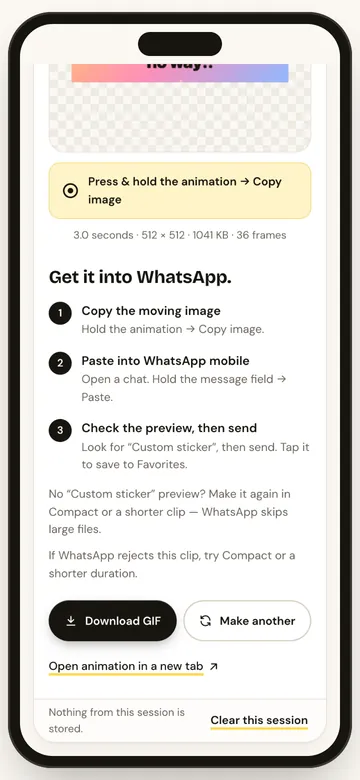
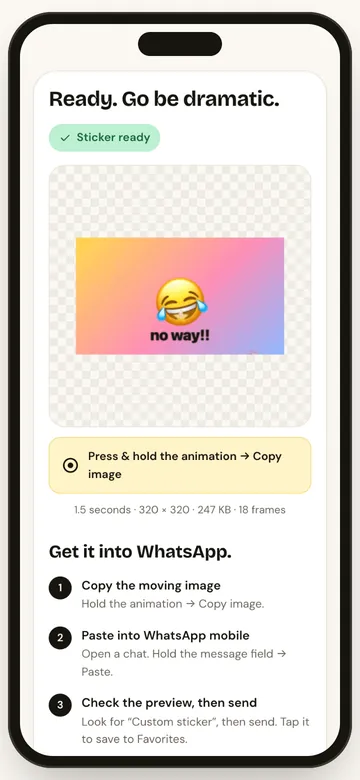
We ran one colourful, fast-moving 3-second clip through StickerAI three ways. The results show how much resolution and length matter:
| Resolution | Length | File size | Under 500 KB? |
|---|---|---|---|
| High (512 × 512) | 3.0 s | 1,041 KB | No, about twice the limit |
| Compact (320 × 320) | 3.0 s | 492 KB | Just |
| Compact (320 × 320) | 1.5 s | 247 KB | Yes, comfortably |
Switching to Compact halved the file, and halving the length halved it again. A calmer clip, like a face against a plain wall, would be far smaller at every setting.
Length: 10 seconds is the ceiling, not the goal
Animated stickers can run up to 10 seconds, but the ones that work best are much shorter. A sticker is a reaction, and a 1 to 3 second loop lands faster and stays far under the size limit.
Transparency
Stickers have a transparent background, which is why they look like they float in the chat instead of sitting in a box. Padding added to fit a rectangle into the square should be transparent too, not black or white bars.
Sticker pack rules (for sticker apps)
If you’re publishing a full pack through a sticker app, WhatsApp adds a few rules on top:
- A pack holds 3 to 30 stickers.
- It needs a 96 × 96 px tray icon under 50 KB.
- All stickers in a pack must be either static or animated, not a mix.
For one-off stickers you just want to send, none of this applies. Copy, paste and send.
How StickerAI handles these limits
- Square by default: choose High (512 × 512) or Compact (320 × 320).
- Built-in margin: artwork sits inside a 16 px transparent edge.
- Short loops: clips are capped at 4 seconds, well inside WhatsApp’s 10.
- Size warning: if the finished file is over 500 KB, StickerAI tells you and suggests Compact or a shorter clip.
- Transparent padding: Fit entire clip pads with transparency, never coloured bars.
Troubleshooting: when stickers misbehave
It sent as a GIF, not a sticker
The most common cause is file size. Make it again at Compact resolution, or trim the clip to 1 to 2 seconds, then copy and paste again.
The sticker isn’t animating
Usually the same culprit: a file that’s too big. Shorter and smaller fixes it in most cases. Also check you copied the moving image itself, not a screenshot of it.
There’s no “Custom sticker” option when I paste
Copy and paste support varies by phone, browser and WhatsApp version. Update WhatsApp, try another browser, or use the Download GIF button as a backup.
The sticker looks blurry
Start from the best-quality source you can, and use High (512 × 512) unless you need Compact for size. Very small or heavily compressed source videos stay soft no matter what.
The edges are cut off
Switch from Square crop to Fit entire clip to keep the whole frame.
It doesn’t work on WhatsApp Web
Pasting animated stickers this way is meant for the WhatsApp mobile app. Make and send them from your phone.
Keep reading
FAQs
What size is a WhatsApp sticker?
512 × 512 pixels, with a transparent background and about 16 px of margin around the artwork.
What is the maximum file size for a WhatsApp sticker?
100 KB for a static sticker and 500 KB for an animated one, according to WhatsApp’s guidelines for sticker packs.
How long can an animated WhatsApp sticker be?
Up to 10 seconds. Shorter loops of 1 to 3 seconds usually work better and stay well under the size limit.
Why does my sticker send as a GIF?
Usually because the file is too big. Make it again at a smaller resolution or with a shorter clip, then copy and paste it again.