How to make a WhatsApp sticker from an Instagram Reel
Want to make a WhatsApp sticker from an Instagram Reel? You can’t paste a Reel link into a sticker maker, but there’s a simple two-step method that works on any phone: save the Reel, then turn it into a sticker. Here’s exactly how.
The short version
- Save the Reel to your phone, using Instagram’s Download option or a screen recording.
- Open StickerAI and tap Upload.
- Pick up to 4 seconds and choose Square crop.
- Tap Make a sticker, then copy it and paste it into WhatsApp.
Why can’t I just paste the Reel link?
Instagram doesn’t let other websites download Reels from a link, so StickerAI can’t load Instagram links. Saving the video to your phone first is the reliable route, and it works for YouTube Shorts, Facebook and Snapchat videos too.
Step 1: Save the Reel to your phone
Option A: Instagram’s Download button
On many public Reels, Instagram lets you save a copy. Tap the Share (paper plane) icon and look for Download. If it isn’t there, the creator has turned downloads off or the option isn’t available to your account; use Option C instead. Downloaded Reels may include an Instagram watermark.
Option B: Your own Reels
For a Reel you posted, open it, tap the ⋯ menu and look for Download or Save to device.
Option C: Screen-record it
This works for any Reel you can watch:
- iPhone: open Control Centre and tap Screen Recording. If you don’t see it, add it in Settings → Control Centre.
- Android: swipe down to Quick Settings and tap Screen record (it may be called Screen recorder on your phone).
Start recording, play the Reel through the moment you want, then stop. The video lands in your gallery.
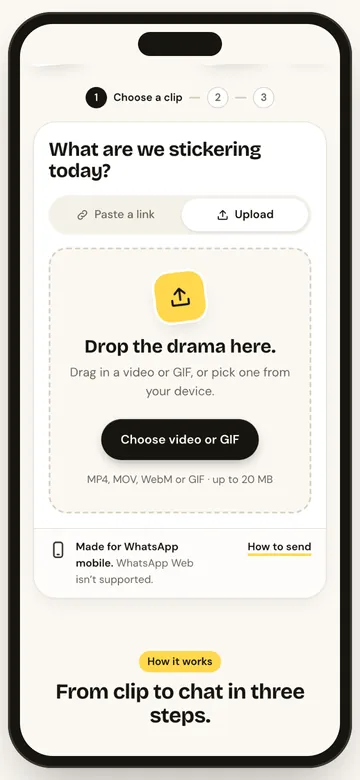
Step 2: Turn it into a sticker
- Open stickerai.in and tap Upload, then pick the saved Reel or screen recording.
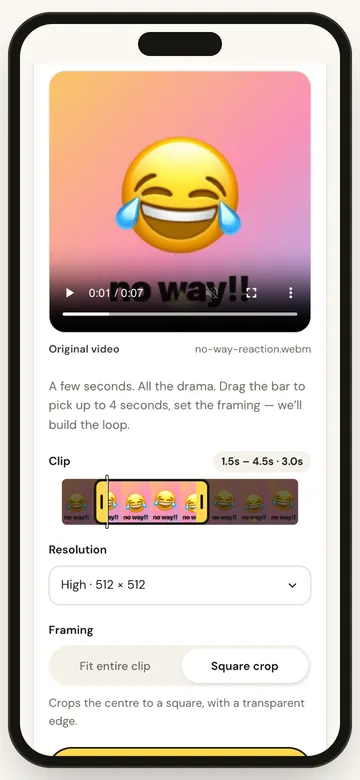
- Drag the highlighted window along the thumbnail strip to pick the best moment, up to 4 seconds.
- Choose Square crop under Framing.
Why Square crop? Reels are tall, and screen recordings also include Instagram’s buttons, captions and username. Square crop keeps the centre of the frame, where the action usually is, and cuts most of that clutter away.
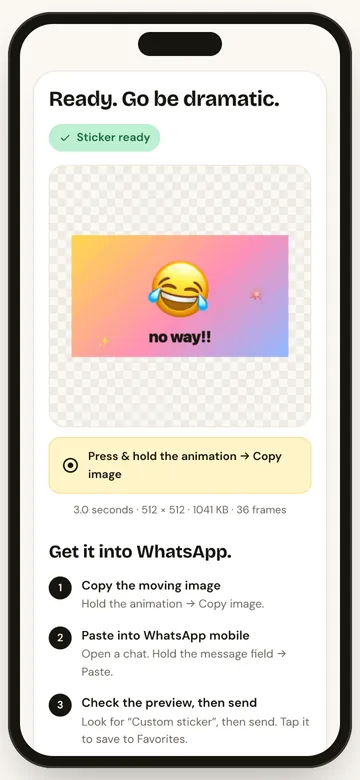
Then tap Make a sticker. When it’s ready, press and hold it → Copy image, paste it into a WhatsApp chat and send it as a Custom sticker. Our full sticker guide covers every step in detail.
Tips for Reel stickers
- Grab the reaction, not the story. One facial expression or gesture beats a whole scene.
- Keep it to 1 to 3 seconds. Reels are high-detail video, so shorter clips keep the sticker under WhatsApp’s size limit.
- Avoid parts with big on-screen text. Captions shrink to unreadable at sticker size.
- If it sends as a GIF, make it again at Compact resolution. See the sticker size guide for why.
Respect the creator
A Reel belongs to the person who made it. Turning a moment into a sticker for your own group chat is very different from reposting someone’s content publicly or using it commercially. When in doubt, ask the creator, or make stickers from your own clips.
FAQs
Can I paste an Instagram link into StickerAI?
No. Instagram doesn’t allow other sites to download Reels from a link. Save the Reel to your phone first, then upload it.
Does this work for YouTube Shorts and Facebook videos?
Yes. Save or screen-record the video, then upload it to StickerAI the same way.
Will my sticker show the Instagram watermark?
It can, if the saved video has one. Square crop or a careful trim often removes it, depending on where it sits in the frame.
Is my video uploaded anywhere?
No. Videos you upload are converted on your phone and never leave it.