How to make animated WhatsApp stickers from any video
That one clip your friends keep quoting deserves to be a sticker. Here’s how to turn any video into an animated WhatsApp sticker in under a minute, right in your phone’s browser, with no app and no sign-up.
The short version
- Open StickerAI in your phone’s browser.
- Upload a video from your gallery, or paste an X or Tenor link.
- Drag the bar to pick up to 4 seconds.
- Tap Make a sticker.
- Press and hold the result → Copy image, then paste it into a WhatsApp chat and send it as a “Custom sticker”.
What you need
- A phone with WhatsApp. iPhone or Android both work. WhatsApp Web isn’t supported for this.
- A video or GIF. MP4, MOV, WebM or GIF up to 20 MB, or a public X (Twitter) post, a Tenor GIF page, or a direct .mp4 or .gif link.
- Nothing else. There’s no app to install and no account to create. The conversion happens on your phone, so your clip is never uploaded.
Step 1: Get your clip
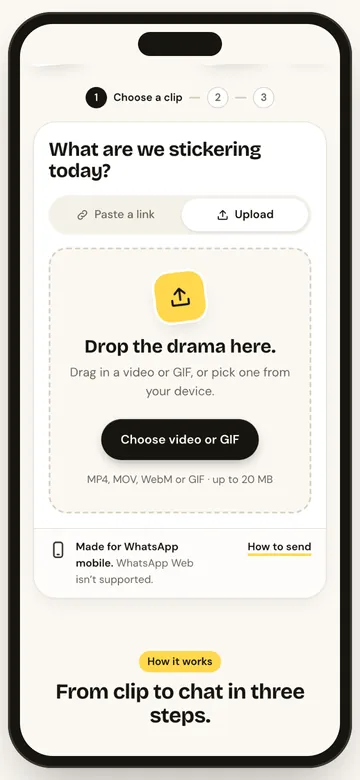
Open stickerai.in and choose how to bring your clip in.
- From your gallery: tap Upload and pick the video. A screen recording works too, which is handy for clips from apps that don’t let you save.
- From a link: paste a public X post or a Tenor GIF page and tap Load clip.
Got an Instagram Reel or a YouTube Short? Those links aren’t supported. Save the video to your phone first (or screen-record it), then use Upload.
Step 2: Pick the best 4 seconds
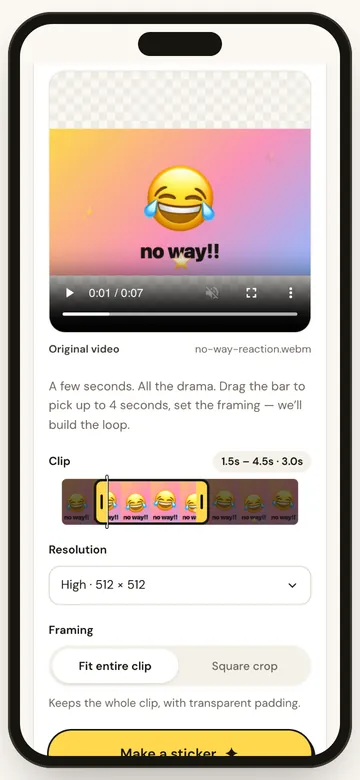
Stickers are short loops, so StickerAI keeps up to 4 seconds. Below the preview you’ll see a strip of thumbnails covering the whole video, with a highlighted window:
- Drag the window to slide your selection along the video.
- Drag either yellow handle to make the selection shorter or longer.
- Press play to watch the loop exactly as it will repeat.
Short is a feature, not a limit. Two seconds of the perfect reaction beats four seconds of build-up, and a shorter clip also makes a smaller file that WhatsApp is happier to accept.
Step 3: Choose the framing and resolution
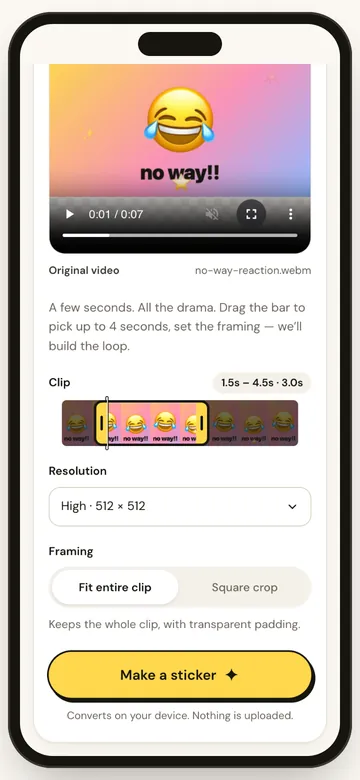
WhatsApp stickers are square. StickerAI gives you two ways to fit a rectangular video:
- Fit entire clip keeps the whole frame and adds transparent padding. Best when there’s a caption or the action fills the width.
- Square crop cuts the centre into a square. Best for faces and reactions.
For resolution, start with High (512 × 512), WhatsApp’s native sticker size. If the sticker doesn’t paste as a sticker, switch to Compact (320 × 320), which makes a much smaller file.
Step 4: Make the sticker
Tap Make a sticker. StickerAI turns your selection into an animated loop at 12 frames per second. It all happens on your phone and usually takes a few seconds. Keep the tab open until it finishes.
Step 5: Send it in WhatsApp
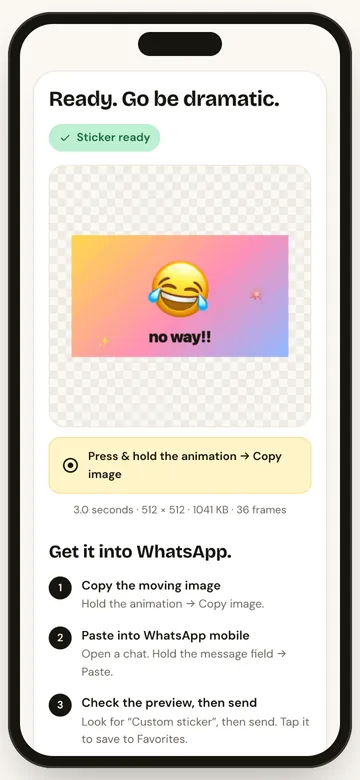
- Copy it: press and hold the animation, then tap Copy image.
- Paste it: open a WhatsApp chat, press and hold the message field, and tap Paste.
- Send it: check the preview shows Custom sticker, then send.
- Keep it: tap the sticker in the chat and add it to Favorites so it’s always one tap away.
If “Copy image” doesn’t appear
Copy and paste support varies by phone, browser and WhatsApp version. Try opening StickerAI in a different browser (Chrome on Android, Safari on iPhone are good bets). As a backup, tap Download GIF and share the file from your gallery. Be aware that a shared file may arrive as a GIF rather than a sticker.
Tips for stickers people actually reuse
- Start on the action. Cut out the build-up so the reaction lands in the first second.
- Think in loops. Clips where the end flows back into the start (a nod, a shrug, a dance move) look best on repeat.
- Keep the subject in the middle. Stickers show up small in a chat, so a centred face reads better than a wide shot.
- Skip long text. One or two words of caption is readable at sticker size; a full sentence isn’t.
- Make a set. A “yes”, a “no” and a “lol” of the same person is how inside jokes are born.
Sticker sent as a GIF, or not moving?
That’s almost always file size: WhatsApp only turns small files into animated stickers. Make it again with a shorter clip or Compact resolution. For the exact limits and more fixes, see our WhatsApp sticker size and format guide.
FAQs
Can I make a WhatsApp sticker from a video without an app?
Yes. StickerAI runs in your phone’s browser, so there’s nothing to install and no account to create. Upload the video, pick up to 4 seconds and tap Make a sticker.
How long can an animated WhatsApp sticker be?
WhatsApp allows animated stickers of up to 10 seconds in sticker packs. StickerAI keeps clips to 4 seconds, which loops better and keeps the file small enough for WhatsApp.
Does it work on iPhone and Android?
Yes. Use Safari or Chrome on iPhone, or Chrome on Android. Copy and paste into WhatsApp varies by phone and app version, so Download GIF is there as a backup.
Is my video uploaded anywhere?
No. Videos you upload are converted on your phone and never leave it. Links go through a temporary relay so your browser can download them; nothing is stored.