How to turn a GIF into a WhatsApp sticker
Converting a GIF to a WhatsApp sticker takes under a minute. In WhatsApp, GIFs arrive as a big auto-playing box; a sticker is smaller, see-through around the edges, and saved in your tray for instant reuse. Here are three free ways to do it.
The short version
- Copy the GIF’s link (Tenor or X), or save the GIF to your phone.
- Open StickerAI and paste the link, or tap Upload.
- Trim to the best moment (up to 4 seconds) and tap Make a sticker.
- Press and hold the result → Copy image → paste into WhatsApp → send as a “Custom sticker”.
GIF vs sticker: what’s the difference?
| GIF in WhatsApp | Sticker | |
|---|---|---|
| How it looks | A full-width box with a background | A small, square image with transparent edges |
| Reusing it | Search for it again every time | Saved in Favorites, one tap away |
| Feels like | Sharing a clip | A reaction from you |
Converting a GIF into a sticker gives you the same animation in the format that feels like part of the conversation.
Method 1: From Tenor
Tenor is where most reaction GIFs live, including the ones in WhatsApp’s own GIF search.
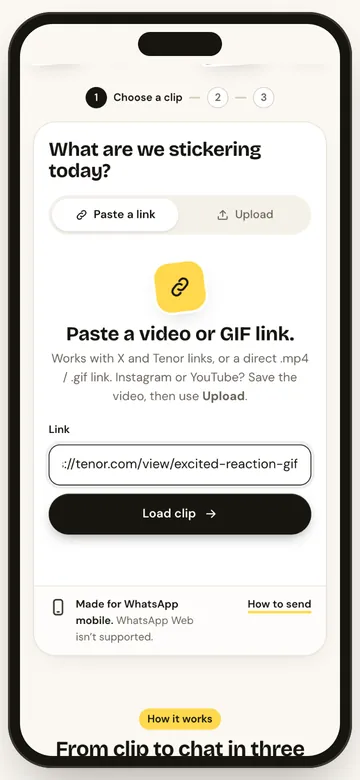
- Find the GIF on tenor.com and open its page. The address looks like
tenor.com/view/…. - Copy the page link from the address bar or the share button.
- In StickerAI, paste it into the Paste a link box and tap Load clip.
StickerAI finds the GIF on the page and downloads it straight to your phone.
Method 2: From X (Twitter)
Lots of the best reaction clips start life on X. GIFs there are actually short videos, and StickerAI handles both.
- Open the post and tap Share → Copy link. The link contains
/status/. - Paste it into StickerAI and tap Load clip.
The post needs to be public. Private, deleted or age-restricted posts can’t be loaded.
Method 3: A GIF already on your phone
Saved a GIF from a chat, a keyboard app or a website? Tap Upload and pick it from your gallery or files. Any GIF up to 20 MB works.
A link that ends in .gif (from GIPHY or anywhere else) can also be pasted straight in. If a site blocks it, download the GIF and upload it instead.
Make the GIF work as a sticker
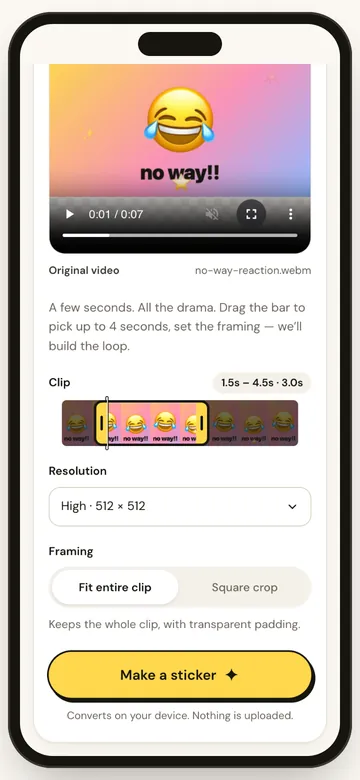
Trim long GIFs
Stickers keep up to 4 seconds. If your GIF is longer, drag the highlighted window along the thumbnail strip to pick the moment that matters. For most reactions, the best 1 to 2 seconds is plenty.
Keep the caption readable
Many meme GIFs have text burned in at the top or bottom. Choose Fit entire clip so the caption isn’t cropped away. For a GIF that’s all face, Square crop fills the sticker better.
Watch the file size
Detailed, colourful GIFs make bigger stickers. If WhatsApp sends yours as a GIF instead of a sticker, make it again at Compact resolution or with a shorter clip. Our sticker size guide explains why.
Send it and save it
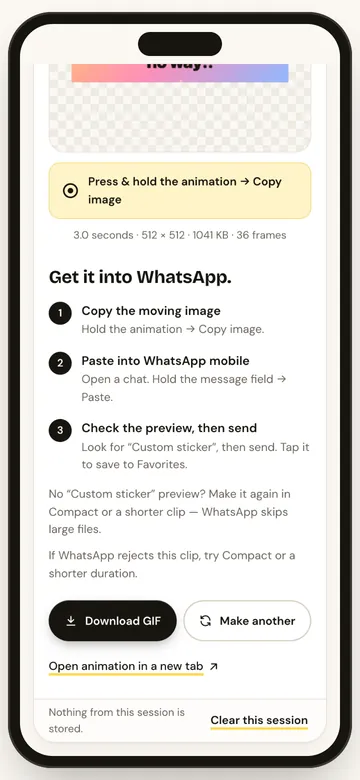
- Press and hold the finished animation → Copy image.
- In WhatsApp, press and hold the message field → Paste.
- Check for Custom sticker in the preview, then send.
- Tap the sticker in the chat → Add to Favorites.
Want to go beyond GIFs? Here’s how to make a sticker from any video.
FAQs
Can I use a GIPHY link?
A direct link ending in .gif usually works. A GIPHY page link doesn’t; download the GIF and upload it instead.
Can I convert a GIF someone sent me on WhatsApp?
Yes, if you can save it to your phone. Save it to your gallery or files, then use Upload in StickerAI.
Does it work on iPhone?
Yes. StickerAI runs in Safari or Chrome. Copy and paste into WhatsApp varies by phone and app version, so if it doesn’t paste, use Download GIF as a backup.
Is my GIF uploaded anywhere?
Files you upload are converted on your phone. Links go through a temporary relay so your browser can download the media; nothing is stored.