Why WhatsApp Sends Your Sticker as a GIF Instead
Your animation looks right in the browser. Then you send it on WhatsApp, and it appears as a GIF or video instead of the sticker you expected. Before compressing it again, check how it entered the chat.
Check the sending path first
If WhatsApp sends your sticker as a GIF, it may be receiving an ordinary animation through the attachment or clipboard flow. The file can look right and still not be a sticker message.
- Check that your source actually moves.
- Use WhatsApp’s sticker maker or a compatible animated-sticker importer.
- If you copy from StickerAI, inspect the preview: send only once WhatsApp recognises it as a sticker.
- If you imported a pack, send from the sticker tray.
Making the file smaller can help with size failures. It does not guarantee GIF-to-sticker conversion.
A GIF, a video and an animated sticker are different things
A GIF is an image file containing animation frames. A video such as MP4 uses a video container and codec. A WhatsApp sticker is a particular message type, created or imported through a sticker workflow. In WhatsApp’s documented third-party sticker-pack format, animated artwork uses animated WebP.
Changing reaction.gif to reaction.webp only changes the name. Attaching a WebP as a document also does not register a sticker pack. You need both a supported file and the appropriate creation or import step.

Find where the animation changes
| What you see | Likely explanation | Next step |
|---|---|---|
| GIF or video preview | You are sharing media, not creating a sticker. | Cancel and use a sticker creation or import route. |
| Still image before conversion | The source is a thumbnail, screenshot or static export. | Get the moving original; missing frames cannot be recovered by resizing. |
| Moves in the browser, still after pasting | The clipboard may have copied only one frame. | Download the animation and use a compatible importer. |
| No paste or sticker option | That browser/app combination does not offer the handoff. | Try the native sticker maker or an animated-sticker importer. |
| Importer rejects the output | Unsupported format, size, dimensions or pack structure. | Check the final sticker against the importer’s rules. |
What StickerAI exports—and how to use it
StickerAI makes a short, square animated GIF. It currently does not download an animated WebP or install a WhatsApp sticker pack. The result screen’s Download GIF button is literal: it saves an animation you can keep, share as a GIF, or feed into a compatible sticker workflow.
- Open the converter and load a supported link or upload your GIF or video.
- Select up to four seconds. Choose Fit entire clip to preserve the full frame or Square crop to fill the square.
- Tap Make a sticker and check that the result moves.
- On a mobile browser that offers it, press and hold the animation → Copy image. Paste into WhatsApp mobile and check for Custom sticker.
- If the preview is a GIF, video or still image, do not assume sending will change it. Use a supported creation/import route instead.
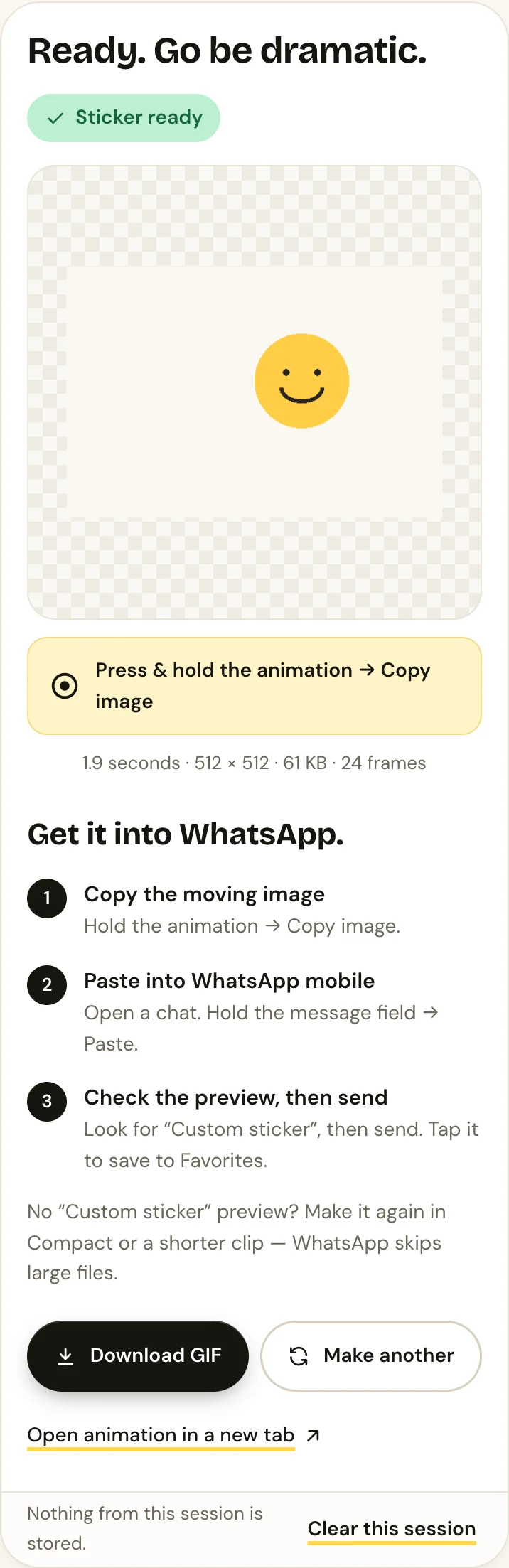
Try Compact or a shorter segment when file size is a problem. Compact creates a 320 × 320 GIF, which is useful as a smaller source; it is not a ready-made 512 × 512 WebP sticker.
What to try on iPhone
First, verify the animation in the browser. Copy the moving image itself if that action is available, then inspect WhatsApp’s paste preview. If you see a still frame or ordinary GIF, download the GIF to retain its animation. Sharing it from Files or Photos is a media-sharing fallback, not a guaranteed sticker import.
If you still have the original video, check WhatsApp’s sticker creation menu for a video option. Otherwise, use an importer that explicitly supports animated GIF input and completes an Add to WhatsApp flow. Open the resulting sticker collection in WhatsApp and confirm that the sticker moves.
What to try on Android
If long-pressing the browser result does not offer an image-copy action, save it with Download GIF. Do not rely on pasting through a keyboard’s clipboard: check whether that keeps the animation and whether WhatsApp identifies the result as a sticker.
Use WhatsApp’s own video sticker maker if that option is available for your original clip, or an importer that supports animated GIFs. Complete the import, then select the sticker from WhatsApp’s sticker tray rather than attaching its file from the gallery.
WhatsApp officially announced video-to-animated-sticker creation in June 2025. Its existence does not establish that every file type, clipboard action or menu is identical on both phones. Update WhatsApp if an expected feature is missing, but do not treat updating as a guaranteed fix.
Testing scope: We verified GIF conversion and download using an original animation in a mobile-sized desktop browser. We have not verified the WhatsApp handoff on physical iPhone or Android devices for this article. The routes above include checks so you can identify what your installed version actually supports.
Which file-size and format restrictions matter?
WhatsApp’s official Android sticker-pack documentation and iOS documentation describe these requirements for third-party packs:
| Requirement | Animated pack sticker |
|---|---|
| File format | Animated WebP |
| Dimensions | Exactly 512 × 512 pixels |
| File size | At most 500 KB; static stickers have a 100 KB limit |
| Duration | At most 10 seconds, with each frame at least 8 ms |
| Pack contents | 3–30 stickers; no mixing static and animated stickers |
These are final sticker-pack requirements, not a published guarantee that any GIF below 500 KB pasted from a browser becomes a sticker. StickerAI’s 20 MB input allowance and four-second trim limit describe the converter. The exported GIF’s size is another measurement; an importer may re-encode it before WhatsApp receives a sticker.
For more detail, see the sticker size and format guide. Already have working stickers and want to group them? Read how to create and share a sticker pack.
Why does my animated sticker look static?
Check the file at each stage: original → browser output → downloaded file → WhatsApp preview. If the original is still, start with another source. If the download moves but the paste does not, the clipboard handoff is the likely point where frames were lost. If a pack import produces a still sticker, check that the importer exported animation rather than a single frame.
A sticker that plays and then stops is a different case. WhatsApp’s pack guidance says playback returns to the first frame after looping. A paused first frame alone does not prove your export failed. Try another known animated sticker to distinguish a problem with this file from playback behaviour in your app.
Frequently asked questions
Will compressing a GIF below 500 KB fix it?
It may help if size caused the failure, but it cannot change a media attachment into a sticker or add clipboard support. Check the preview and the sending route first.
Can I send StickerAI’s download as a sticker pack?
No. A downloaded GIF is not a pack. Use it as input to a compatible animated-sticker creator, finish importing, and then send from WhatsApp’s sticker tray.
Will WhatsApp Web fix a failed mobile paste?
StickerAI’s documented copy-and-paste route targets WhatsApp mobile, not WhatsApp Web. Desktop sticker features do not guarantee support for this animated-GIF handoff.
What if the source came from X?
You may have a post link, an MP4 or a static preview rather than a GIF file. Follow the X GIF troubleshooting guide to check the source before converting it.