How to create and share a WhatsApp sticker pack on Android and iPhone
Every group chat has a few stickers it uses for everything: the dramatic entrance, the side-eye and the one for when plans get cancelled. Put them in a named pack and you can send the whole collection to a friend at once.
To create a WhatsApp sticker pack, tap a sticker in a chat or press and hold one in the sticker tray. Choose Add to sticker pack → New, name the pack and tap Save. You can do this inside the WhatsApp mobile app on both Android and iPhone.
Create your pack
Start with a sticker you’ve already sent or received. You don’t need the original photo or video.
On Android
- Open the chat with the sticker and tap it. If you’re starting from the tray, tap the emoji icon beside the message field, open Stickers, then press and hold a sticker.
- Tap Add to sticker pack → New.
- Give the pack a name, such as Group Chat Reactions, and tap Save.
On iPhone
- Open the chat with the sticker and tap it. To pick one from your tray instead, tap the sticker icon beside the message field, open the sticker tray and press and hold the sticker.
- Choose Add to sticker pack → New.
- Enter your pack name and tap Save.
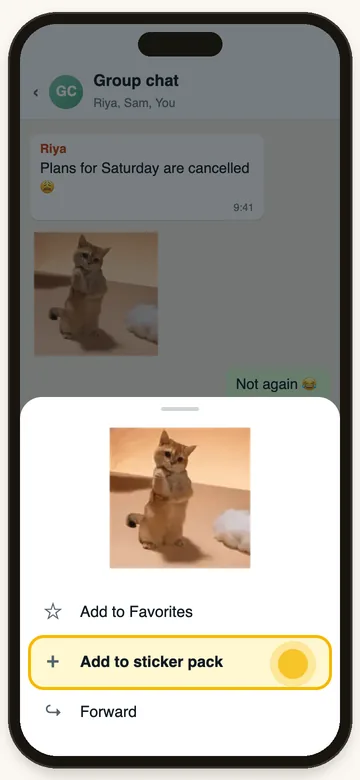
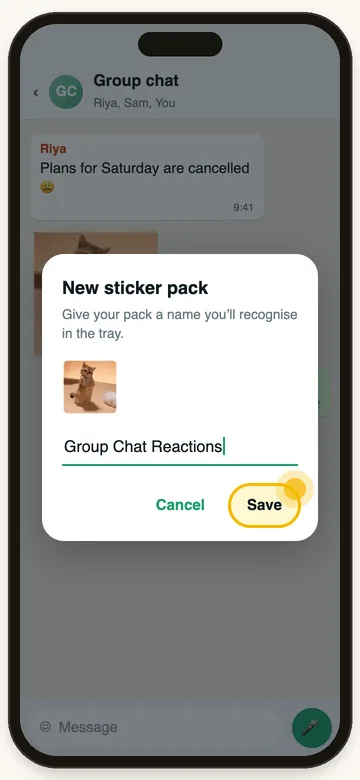
Illustrations. Menus look slightly different on Android and iPhone, and between WhatsApp versions, but the option names are the same.
To add another sticker, open its menu, choose Add to sticker pack, and select the pack you just named. This is also a good way to collect reactions from different chats as you come across them.
Share the whole pack with a friend or group
- Open the chat you want to send the pack to.
- Open the sticker tray. On Android, go through the emoji button and switch to Stickers. On iPhone, start from the sticker icon in the message bar.
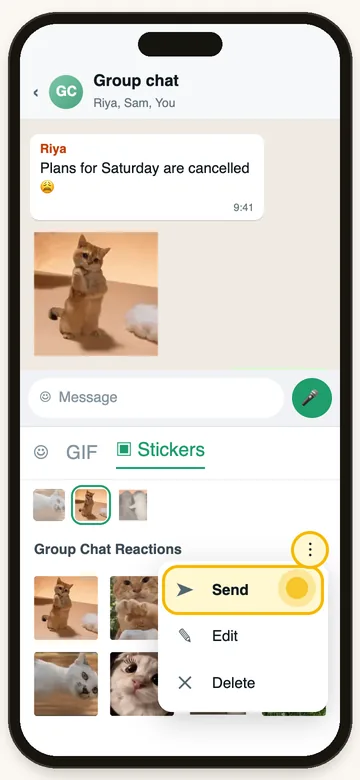
- Select your pack. Tap its three-dot menu and choose Send. Use the pack menu rather than tapping an individual sticker.
- The recipient can open the pack message and add the collection to their own sticker tray.
Add an animated sticker you made with StickerAI
If you have a clip you want to turn into a reaction, make it with StickerAI. Follow the animated WhatsApp sticker guide to copy it into WhatsApp mobile and send it as a sticker. Try your Message yourself chat first so you can check the result. Once it appears as a sticker in the chat, tap it and add it to your animated pack.
StickerAI makes the individual animation. You assemble and share the pack inside WhatsApp. A downloaded GIF that sends as regular media won’t show the sticker-pack option.
If you can’t add or share a sticker
- “Add to sticker pack” is missing. Check that the message was sent as a sticker and update WhatsApp if the pack controls aren’t visible.
- WhatsApp won’t add a sticker to this pack. WhatsApp lists separate requirements for static and animated packs. Try adding the sticker to a pack of the same type. See WhatsApp’s sticker pack instructions for the current limits.
- Only one sticker went through. Open the collection in the sticker tray and use the pack’s three-dot menu to send it.