How to convert a video to GIF on iPhone, Android or desktop
A 20-second clip might have exactly two seconds worth sending. A GIF lets you keep those two seconds and loop them: the dog realising it’s bath time, the reaction at the end of a call, or the one interaction you want to show in a bug report.
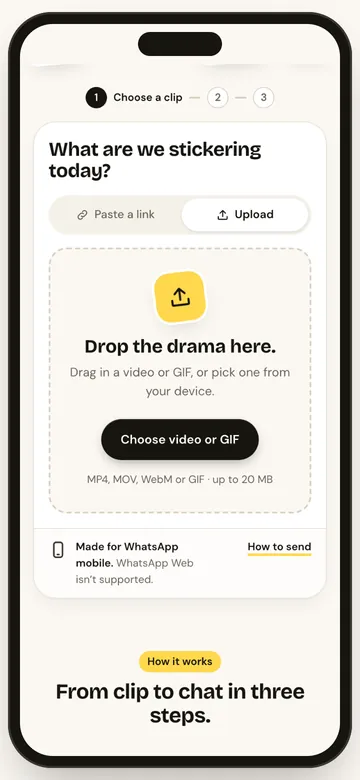
To convert a video to GIF, open StickerAI, choose Upload, select your clip, trim the part you want and tap Make a sticker. Then choose Download GIF. You’ll get a standalone .gif file you can use outside WhatsApp. StickerAI accepts MP4, MOV and WebM files up to 20 MB and exports up to four seconds at a time.
1. Open your video on Android, iPhone or desktop
Android
- Open StickerAI in your browser and tap Upload → Choose video or GIF.
- Pick your clip from the photo picker. If it’s in a folder instead of your camera roll, use Browse or your file picker when offered.
- After trimming and exporting below, open the GIF from your browser’s downloads or the Downloads folder in your Files app.
iPhone
- Open StickerAI in your browser and tap Upload → Choose video or GIF.
- Select the clip from your photo library or choose it from Files.
- After exporting, check your browser’s download list or the location it saved to in Files.
Desktop
- Open StickerAI on your computer.
- Drop the clip into the upload area or click Choose video or GIF.
- After exporting, open the GIF from your browser’s downloads. You don’t need to move the clip to your phone.
The conversion runs on your device when you select a local file. If your video is over 20 MB, trim a copy in your phone’s video editor first and pick the shorter file. Keep the original if you’ll want it later.
2. Trim the moment you want to loop
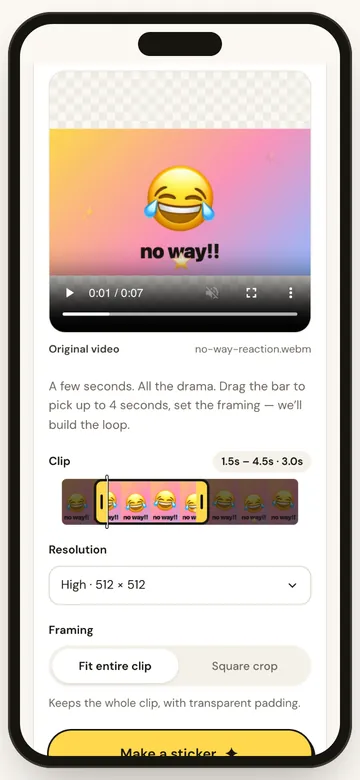
Move the highlighted range to the part you want, then drag its handles to set the start and end. For a reaction, start just before the expression changes and stop before the camera cuts away. For a screen recording, leave enough time to see the result of the click.
Preview the loop before converting. If the jump back to the beginning feels abrupt, try shifting the start or end by a few frames' worth of time.
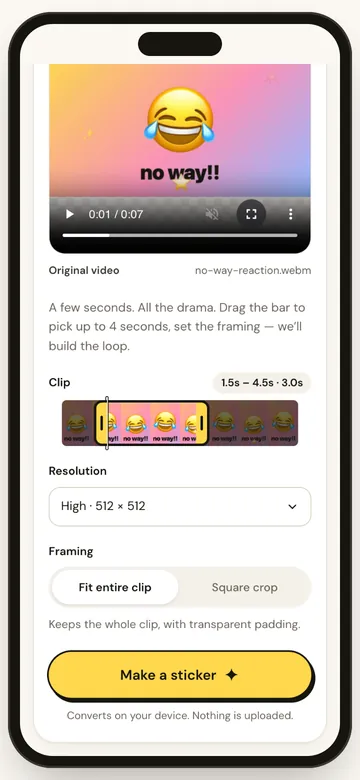
3. Choose a frame and size
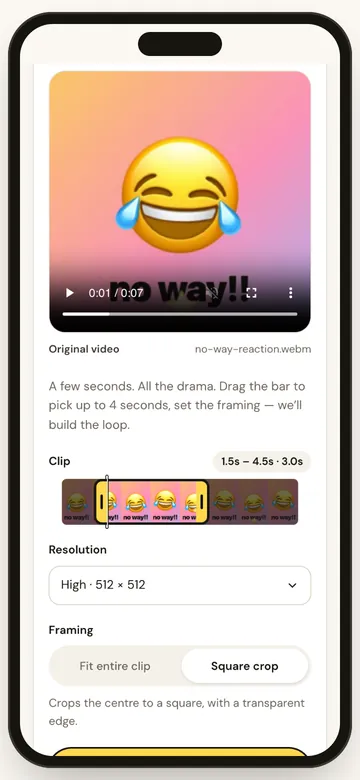
| If you want… | Pick |
|---|---|
| The full scene, including text or faces near the edges | Fit entire clip. StickerAI keeps the full picture inside a square with padding. |
| A reaction that fills the square | Square crop. Check the preview to make sure the subject isn’t cut off. |
| A smaller GIF for a chat or a quick preview | Compact (320 × 320). Start with a shorter clip if it’s still too large. |
| More detail, especially for small text | High (512 × 512). Check that the text is readable after export. |
4. Download the GIF
Tap Make a sticker, wait for the animation to appear, then select Download GIF. If the browser asks where to save it, choose a folder you can find again. Open the downloaded file to check the loop before sharing it.
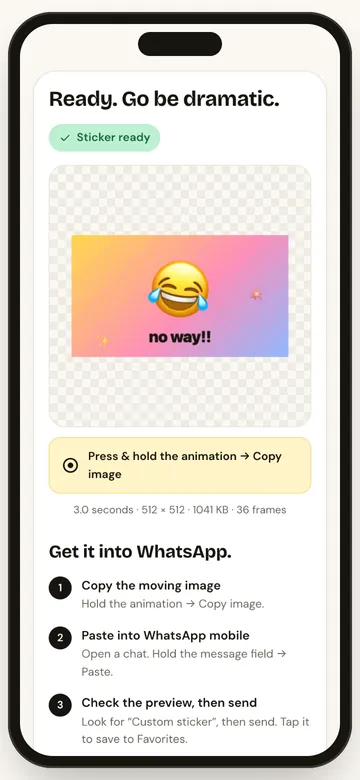
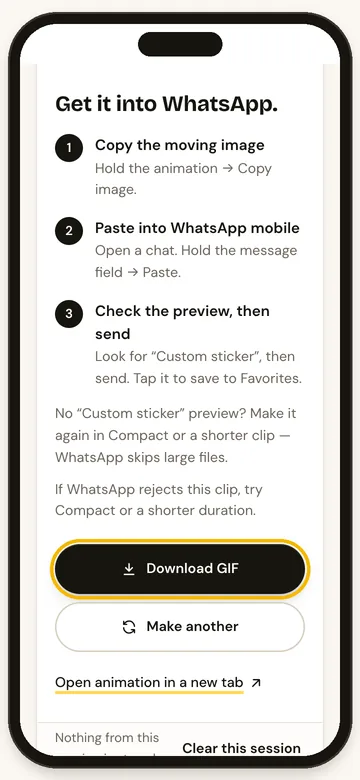
The button says “Make a sticker,” but Download GIF gives you a regular animated image. If you want WhatsApp to recognise it as a sticker, follow the separate GIF-to-WhatsApp-sticker guide.
When a GIF isn’t the right export
- You need sound. GIFs don’t carry audio. Keep the clip as an MP4 if the dialogue or music is the point. More on GIFs and sound.
- You need more than four seconds or the original wide frame. StickerAI is built for short square loops. A general video-to-GIF converter offers more control over duration, dimensions and frame rate.
- You’re trying to make the file smaller than the original video. A GIF can be larger than the MP4 it came from. Shorten the loop and reduce its dimensions first; use video if file size matters more than having a GIF.